Presented at CHI 2012, Touché is a capacitive system for pervasive, continuous sensing. Among other amazing capabilities, it can accurately sense gestures a user makes on his own body. “It is conceivable that one day mobile devices could have no screens or buttons, and rely exclusively on the body as the input surface.” Touché.
ADDED: I’m reminded of this quote by Picasso – it describes Jobs just as well:
When I die, it will be a shipwreck, and as when a huge ship sinks, many people all around will be sucked down with it.
Noticing that many of the same sensors, silicon, and batteries used in smartphones are being used to create smarter artificial limbs, Fast Company draws the conclusion that the market for smartphones is driving technology development useful for bionics. While interesting enough, the article doesn’t continue to the next logical and far more interesting possibility: that phones themselves are becoming parts of our bodies. To what extent are smartphones already bionic organs, and how could we tell if they were? I’m actively researching design in this area – stay tuned for more about the body-incorporated phone.
One of the best known asymmetries in humans is the right ear dominance for listening to verbal stimuli, which is believed to reflect the brain’s left hemisphere superiority for processing verbal information.
I heavily prefer my left ear for phone calls. So much so that I have trouble understanding people on the phone when I use my right ear. Should I be concerned that my brain seems to be inverted?
Read on and it becomes clear that going beyond perceptual psychology, the scientists are terrifically shrewd:
Tommasi and Marzoli’s three studies specifically observed ear preference during social interactions in noisy night club environments. In the first study, 286 clubbers were observed while they were talking, with loud music in the background. In total, 72 percent of interactions occurred on the right side of the listener. These results are consistent with the right ear preference found in both laboratory studies and questionnaires and they demonstrate that the side bias is spontaneously displayed outside the laboratory.
In the second study, the researchers approached 160 clubbers and mumbled an inaudible, meaningless utterance and waited for the subjects to turn their head and offer either their left of their right ear. They then asked them for a cigarette. Overall, 58 percent offered their right ear for listening and 42 percent their left. Only women showed a consistent right-ear preference. In this study, there was no link between the number of cigarettes obtained and the ear receiving the request.
In the third study, the researchers intentionally addressed 176 clubbers in either their right or their left ear when asking for a cigarette. They obtained significantly more cigarettes when they spoke to the clubbers’ right ear compared with their left.
I’m picturing the scientists using their grant money to pay cover at dance clubs and try to obtain as many cigarettes as possible – carefully collecting, then smoking, their data – with the added bonus that their experiment happens to require striking up conversation with clubbers of the opposite sex who are dancing alone. One assumes that, if the test subject happened to be attractive, once the cigarette was obtained (or not) the subject was invited out onto the terrace so the scientist could explain the experiment and his interesting line of work. Well played!
The test consisted of working out the meaning of a new term based on the context provided in two sentences. For example, in the phrase “The girl got a jat for Christmas” and “The best man was so nervous he forgot the jat,” the noun jat means “ring.” Similarly, with “The student is nising noodles for breakfast” and “The man nised a delicious meal for her” the hidden verb is “cook.”
“This task simulates, at an experimental level, how we acquire part of our vocabulary over the course of our lives, by discovering the meaning of new words in written contexts,” explains Rodríguez-Fornells. “This kind of vocabulary acquisition based on verbal contexts is one of the most important mechanisms for learning new words during childhood and later as adults, because we are constantly learning new terms.”
The participants had to learn 80 new nouns and 80 new verbs. By doing this, the brain imaging showed that new nouns primarily activate the left fusiform gyrus (the underside of the temporal lobe associated with visual and object processing), while the new verbs activated part of the left posterior medial temporal gyrus (associated with semantic and conceptual aspects) and the left inferior frontal gyrus (involved in processing grammar).
This last bit was unexpected, at first. I would have guessed that verbs would be learned in regions of the brain associated with motor action. But according to this study, verbs seem to be learned only as grammatical concepts. In other words, knowledge of what it means to run is quite different than knowing how to run. Which makes sense if verb meaning is accessed by representational memory rather than declarative memory.
I’m a new parent of twin boys, and I could really use something like this. But it would be even better if the algorithm could break down the “normal” cries into specific needs. Mr. Nagashima, you are doing God’s work; faster, please.
Interfaces that vibrate soon after we click a virtual button (on the order of tens of milliseconds) and whose vibrations have short durations are preferred. This combination simulates a button with a “light touch” – one that depresses right after we touch it and offers little resistance.
Users also liked virtual buttons that vibrated after a longer delay and then for a longer subsequent duration. These buttons behaved like ones that require more force to depress.
This is very interesting. When we think of multimodal feedback needing to make cognitive sense, synchronization first comes to mind. But there are many more synesthesias in our experience that can only be uncovered through careful reflection. To make an interface feel real, we must first examine reality.
By singing, patients use a different area of the brain from the area involved in speech. If a person’s “speech centre” is damaged by a stroke, they can learn to use their “singing centre” instead.
During the therapy sessions, patients are taught to put their words to simple melodies. Professor Schlaug said that after a single session, a stroke patients who was are not able to form any intelligible words learned to say the phrase “I am thirsty” by combining each syllable with the note of a melody.
The article doesn’t say whether patients can ever go back to talking without singing. I can only hope that as their lives begin to sound like an opera, the corresponding drama, murder and intrigue doesn’t follow.
Researchers at the Army Research Office developed a vibrating belt with eight mini actuators — “tactors” — that signify all the cardinal directions. The belt is hooked up to a GPS navigation system, a digital compass and an accelerometer, so the system knows which way a soldier is headed even if he’s lying on his side or on his back.
The tactors vibrate at 250 hertz, which equates to a gentle nudge around the middle. Researchers developed a sort of tactile morse code to signify each direction, helping a soldier determine which way to go, New Scientist explains. A soldier moving in the right direction will feel the proper pattern across the front of his torso. A buzz from the front, side and back tactors means “halt,” a pulsating movement from back to front means “move out,” and so on.
Both hearing and touch, the scientists pointed out, rely on nerves set atwitter by vibration. A cell phone set to vibrate can be sensed by the skin of the hand, and the phone’s ring tone generates sound waves — vibrations of air — that move the eardrum…
A vibration that has a higher or lower frequency than a sound… tends to skew pitch perception up or down. Sounds can also bias whether a vibration is perceived.
The ability of skin and ears to confuse each other also extends to volume… A car radio may sound louder to a driver than his passengers because of the shaking of the steering wheel. “As you make a vibration more intense, what people hear seems louder,” says Yau. Sound, on the other hand, doesn’t seem to change how intense vibrations feel.
Though computer music is at the edge of the avant-garde today, its roots go back to 1957, when Mathews wrote the first version of “Music,” a program that allowed an IBM 704 mainframe computer to play a 17-second composition. He quickly realized, as he put it in a 1963 article in Science, “There are no theoretical limits to the performance of the computer as a source of musical sounds.”
Rest in peace, Max.
UPDATE: I haven’t updated this blog in a while, and I realized after posting this that my previous post was about the 2010 Modulations concert. Max Mathews played at Modulations too, and that was the last time I saw him.
I finally got around to recording and mastering the set I played at the CCRMA Modulations show a few months back. Though I’ve been a drum and bass fan for many years, this year’s Modulations was the first time I’d mixed it for others. Hope you like it!
Modulations 2010
Drum & Bass | 40:00 | May 2010
Audio clip: Adobe Flash Player (version 9 or above) is required to play this audio clip. Download the latest version here. You also need to have JavaScript enabled in your browser.
1. Excision — System Check
2. Randomer — Synth Geek
3. Noisia — Deception
4. Bassnectar — Teleport Massive (Bassnectar Remix)
5. Moving Fusion, Shimon, Ant Miles — Underbelly
6. Brookes Brothers — Crackdown
7. The Ian Carey Project — Get Shaky (Matrix & Futurebound’s Nip & Tuck Mix)
8. Netsky — Eyes Closed
9. Camo & Krooked — Time Is Ticking Away feat. Shaz Sparks
Over the last few days this video has been so much bombshell to many of my music-prone friends.
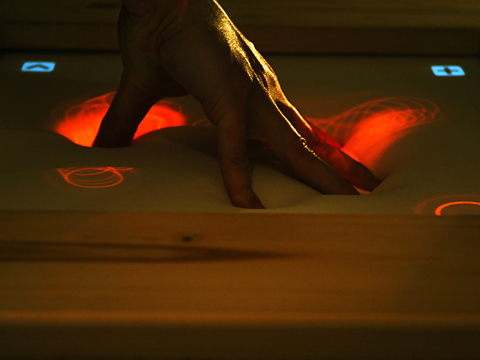
It’s called the Multi-Touch Light Table and it was created by East Bay-based artist/fidget-house DJ Gregory Kaufman. The video is beautifully put together, highlighting the importance of presentation when documenting new ideas.
I really like some of the interaction ideas presented in the video. Others, I’m not so sure about. But that’s all right: the significance of the MTLT is that it’s the first surface-based DJ tool that systematically accounts for the needs of an expert user.
Interestingly, even though it looks futuristic and expensive to us, interfaces like this will eventually be the most accessible artistic tools. Once multi-touch surface are ubiquitous, the easiest way to gain some capability will be to use inexpensive or open-source software. The physical interfaces created for DJing, such as Technics 1200s, are prosthetic objects (as are musical instruments), and will remain more expensive because mechanical contraptions will always be. Now, that isn’t to say that in the future our interfaces won’t evolve to become digital, networked, and multi-touch sensitive, or even that their physicality will be replaced with a digital haptic display. But one of the initial draws of the MTLT—the fact of its perfectly flat, clean interactive surface—seems exotic to us right now, and in the near future it will be default.
Check out this flexible interface called impress. Flexible displays just look so organic and, well impressive. One day these kinds of surface materials will become viable displays and they’ll mark a milestone in touch computing.
It’s natural to stop dancing between songs. The beat changes, the sub-rhythms reorient themselves, a new hook is presented and a new statement is made. But stopping dancing between songs is undesirable. We wish to lose ourselves in as many consecutive moments as possible. The art of mixing music is to fulfill our desire to dance along to continuous excellent music, uninterrupted for many minutes (or, in the best case, many hours) at a time. (Even if we don’t explicitly move our bodies to the music, when we listen our minds are dancing; the same rules apply.)
I don’t remember what prompted me to take that note, but it was probably not that the mixing was especially smooth.
A tomato hailing from Capay, California.
LHCSound is a site where you can listen to sonified data from the Large Hadron Collider. Some thoughts:
That’s one untidy heap of a website. Is this how it feels to be inside the mind of a brilliant physicist?
The name “LHCSound” refers to “Csound”, a programming language for audio synthesis and music composition. But how many of their readers will make the connection?
If they are expecting their readers to know what Csound is, then their explanation of the process they used for sonification falls way short. I want to know the details of how they mapped their data to synthesis parameters.
What great sampling material this will make. I wonder how long before we hear electronic music incorporating these sounds.
The Immersive Pinball demo I created for Fortune’s Brainstorm:Tech conference was featured in a BBC special on haptics.
I keep watching the HTC Sense unveiling video from Mobile World Congress 2010. The content is pretty cool, but I’m more fascinated by the presentation itself. Chief marketing officer John Wang gives a simply electrifying performance. It almost feels like an Apple keynote.
The iFeel_IM haptic interface has been making rounds on the internet lately. I tried it at CHI 2010 a few weeks ago and liked it a lot. Affective (emotional haptic) interfaces are full of potential. IFeel_IM mashes together three separate innovations:
Touch feedback in several different places on the body: spine, tummy, waist.
Touch effects that are generated from emotional language.
Synchronization to visuals from Second Life
All are very interesting. The spine haptics seemed a stretch to me, but the butterfly-in-the-tummy was surprisingly effective. The hug was good, but a bit sterile. Hug interfaces need nuance to bring them to the next level of realism.
The fact that the feedback is generated from the emotional language of another person seemed to be one of the major challenges—the software is built to extract emotionally-charged sentences using linguistic models. For example, if someone writes “I love you” to you, your the haptic device on your tummy will react by creating a butterflies-like sensation. As an enaction devotee I would rather actuate a hug with a hug sensor. Something about the translation of words to haptics is difficult for me to accept. But it could certainly be a lot of fun in some scenarios!
I’ve re-recorded my techno mix Awake with significantly higher sound quality. So if you downloaded a copy be sure to replace it with the new file!
Awake
Techno | 46:01 | October 2009
Audio clip: Adobe Flash Player (version 9 or above) is required to play this audio clip. Download the latest version here. You also need to have JavaScript enabled in your browser.
1. District One (a.k.a. Bart Skils & Anton Pieete) — Dubcrystal
2. Saeed Younan — Kumbalha (Sergio Fernandez Remix)
3. Pete Grove — I Don’t Buy It
4. DBN — Asteroidz featuring Madita (D-Unity Remix)
5. Wehbba & Ryo Peres — El Masnou
6. Broombeck — The Clapper
7. Luca & Paul — Dinamicro (Karotte by Gregor Tresher Remix)
8. Martin Worner — Full Tilt
9. Joris Voorn — The Deep
I recently started using Eclipse on OS X and it was so unresponsive, it was almost unusable. Switching tabs was slow, switching perspectives was hella slow. I searched around the web for a solid hour for how to make it faster and finally found the solution. Maybe someone can use it.
My machine is running OS X 10.5, and I have 2 GB of RAM. (This is important because the solution requires messing with how Eclipse handles memory. If you have a different amount of RAM, these numbers may not work and you’ll need to fiddle with them.)
Save your work and quit Eclipse.
Open the Eclipse application package by right-clicking (or Control-clicking) on Eclipse.app and select “Show Package Contents.”
Navigate to Contents→MacOS→, and open “eclipse.ini” in your favorite text editor.
Edit the line that starts with -”XX:MaxPermSize” to say “-XX:MaxPermSize=128m”.
Before that line, add a line that says “-XX:PermSize=64m”.
Edit the line that starts with “-Xms” to say “-Xms40m”.
Edit the line that starts ith “-Xmx” to say “-Xmx768m”.
I recently started using Eclipse on OS X and it was so unresponsive, it was almost unusable. Switching tabs was slow, switching perspectives was hella slow. I searched around the web for a solid hour for how to make it faster and finally found the solution. Maybe someone can use it.
My machine is running OS X 10.5, and I have 2 GB of RAM. (This is important because the solution requires messing with how Eclipse handles memory. If you have a different amount of RAM, these numbers may not work and you’ll need to fiddle with them.)
Save your work and quit Eclipse.
Open the Eclipse application package by right-clicking (or Control-clicking) on Eclipse.app and select “Show Package Contents.”
Navigate to Contents→MacOS→, and open “eclipse.ini” in your favorite text editor.
Edit the line that starts with -”XX:MaxPermSize” to say “-XX:MaxPermSize=128m”.
Before that line, add a line that says “-XX:PermSize=64m”.
Edit the line that starts with “-Xms” to say “-Xms40m”.
Edit the line that starts ith “-Xmx” to say “-Xmx768m”.







Submit a Comment